Separate the wrapper from the recording
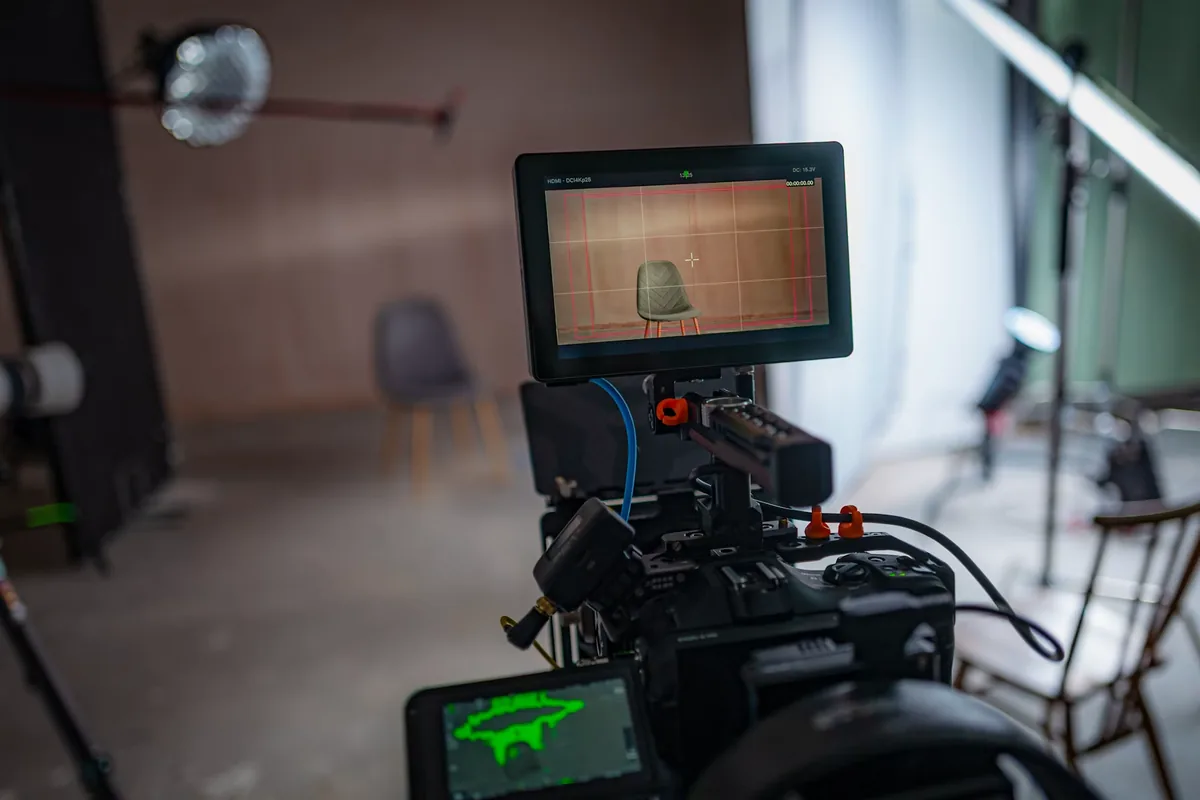
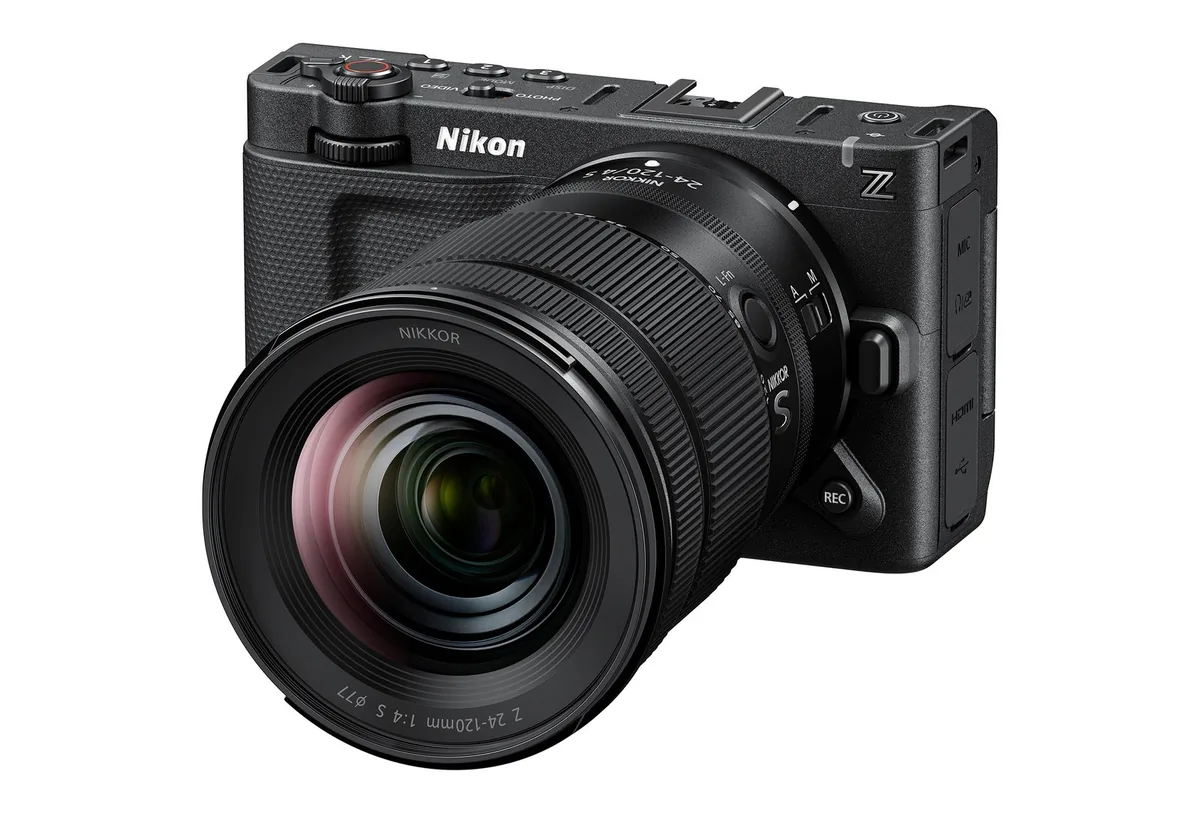
A .mov or .mp4 extension is not a complete description of a video file. The container holds streams and metadata; the codec describes how image information is encoded. Resolution, frame rate, bit depth, chroma sampling and bitrate further distinguish recording modes. Start with the exact mode name in the camera manual and the delivery specification from the editor. A familiar extension can hide a combination your computer handles poorly. The photographs in this guide illustrate storage, editing and media handling; they are not benchmarks of any pictured product.
ProRes favors an editing-oriented workflow
Apple ProRes is a family, not one quality setting. Apple describes several variants with different data rates and image characteristics. As one concrete reference, ProRes 422 HQ has a target rate of approximately 220 megabits per second at 1920 × 1080 and 29.97 frames per second. That is not a universal rate for 4K, other frame rates or every ProRes variant. The practical decision is whether the chosen mode meets the delivery need while fitting the media, transfer and editing budget. Do not buy storage using a rate quoted without its resolution and frame rate.

H.265 saves space only within a defined comparison
H.265, also called HEVC, is often available in compact recording modes. A smaller file is convenient for a long day or a slow connection, but file size alone does not tell you whether playback will be smooth. Hardware decoding support, the exact profile, bit depth and chroma format all matter. Some modes use inter-frame compression, drawing on relationships between frames. Ask the editor to test representative original footage rather than assuming a machine that plays an online HEVC video will handle a multicamera edit in your camera mode. The label alone cannot settle either image quality or performance.
RAW moves decisions, not all responsibility, into post
RAW video workflows retain sensor-oriented information for later processing, but formats and software support differ. RAW does not automatically mean uncompressed, universally compatible or recoverable after clipping. Confirm the exact camera format and required decoder, then test exposure and color interpretation in the intended application. Also verify which adjustments remain available after making proxies or intermediate files. If the client asks for a finished image rather than a RAW archive, budget the time and storage for that finishing path. A technically flexible original is not useful if the receiving team cannot open it on schedule.
Calculate the storage before the shoot
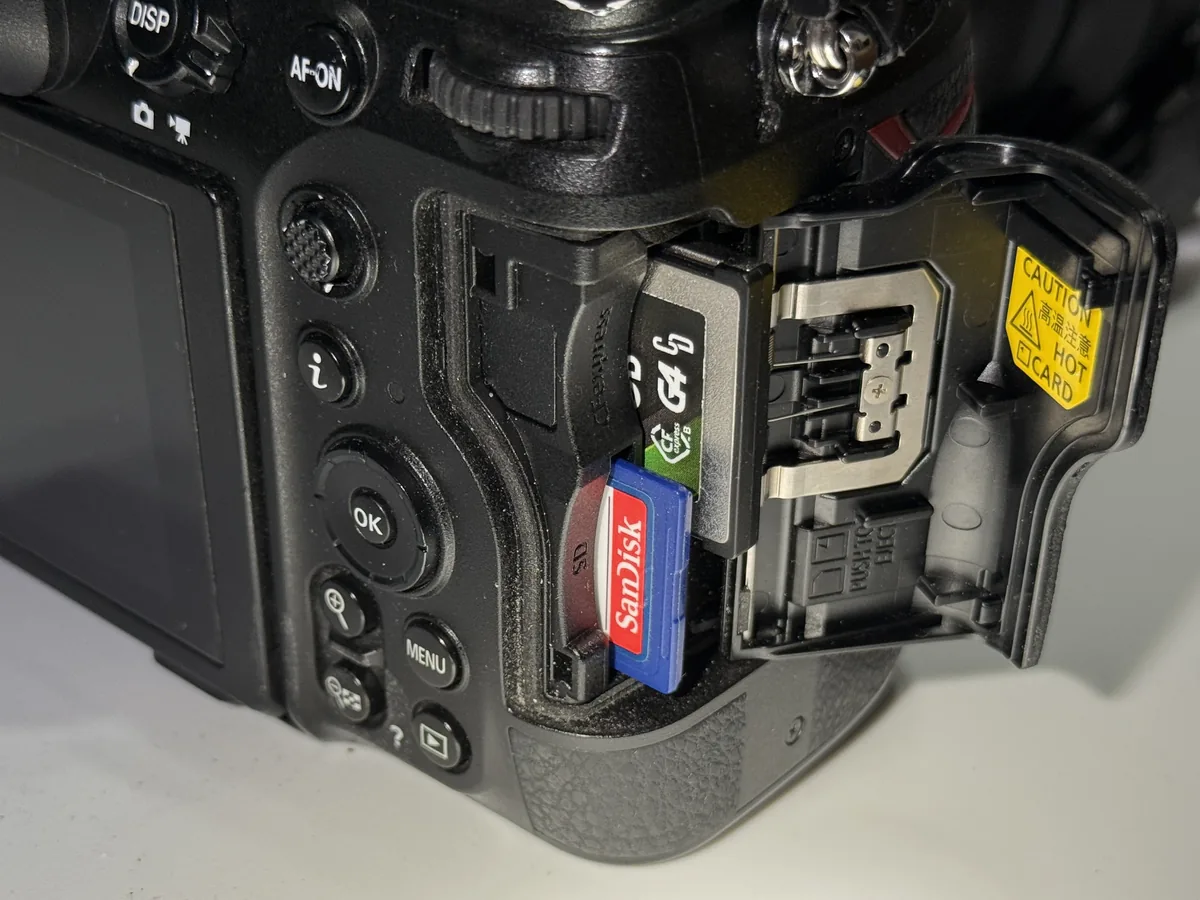
Using decimal units, gigabytes are approximately megabits per second multiplied by seconds, divided by 8,000. At 100 Mbps, ten minutes is about 7.5 GB and one hour about 45 GB. At 220 Mbps, the corresponding estimates are 16.5 GB and 99 GB. At 400 Mbps, they are 30 GB and 180 GB. These are arithmetic examples, not measured camera results. Add audio and container overhead, allow for variable bitrate and reserve working space. Three separate copies of an estimated 99 GB shoot require roughly 297 GB before proxies, project files and exports; capacity does not replace a verified backup process.
Use proxies deliberately and finish a rehearsal
Adobe documents proxy and ingest workflows that create more manageable editing media while retaining links to the originals. Keep unique filenames and the source folder structure, check timecode and audio mapping, and test reconnection before editing the whole project. Make a short sequence containing movement, a difficult gradient and separate sound; apply the intended color treatment and export the actual delivery format. Inspect that export at normal viewing size and confirm that finishing used the intended originals. The best recording mode is the one that meets the image requirement and survives this complete rehearsal—not the one with the most impressive menu label.