Start with the display, not the photograph
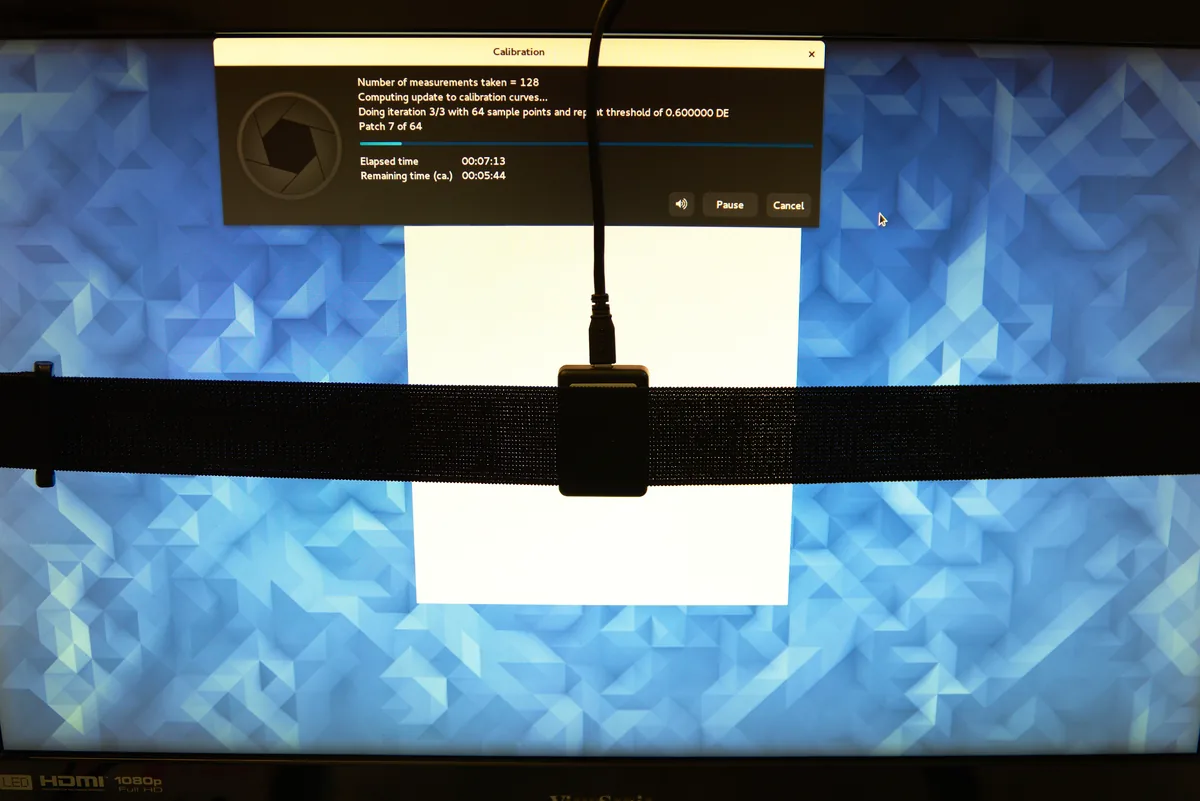
Monitor calibration gives editing a more repeatable reference. It does not make every other screen match yours, repair an inaccurate print profile or prove that an image’s colors are correct. This guide concerns ordinary SDR photographic editing, not HDR mastering. Use a compatible measuring instrument and the software intended for your display and operating system. An on-screen pattern can reveal obvious clipping or unevenness, but your eyes alone cannot measure the screen’s white point or luminance reliably. The archive photograph above shows an actual colorimeter measurement in 2017; it is an illustration of the process, not a recommendation to buy that historical device.
Make the viewing conditions repeatable
Set up the screen where you actually edit, with reflections controlled and room lighting reasonably consistent. Allow the display to stabilize according to its manufacturer’s instructions. EIZO’s general monitor-test guidance suggests warming up for about 30 minutes; an individual display may have different requirements. For a fixed SDR calibration, disable settings that change brightness or color temperature automatically and choose a stable display mode. Record those choices so you can restore them later. If sunlight moves across the desk each afternoon, address that variation before attributing every change in appearance to the profile. Do not compensate for a changing room by repeatedly re-editing the same photograph.
Choose a target for the job rather than a universal number
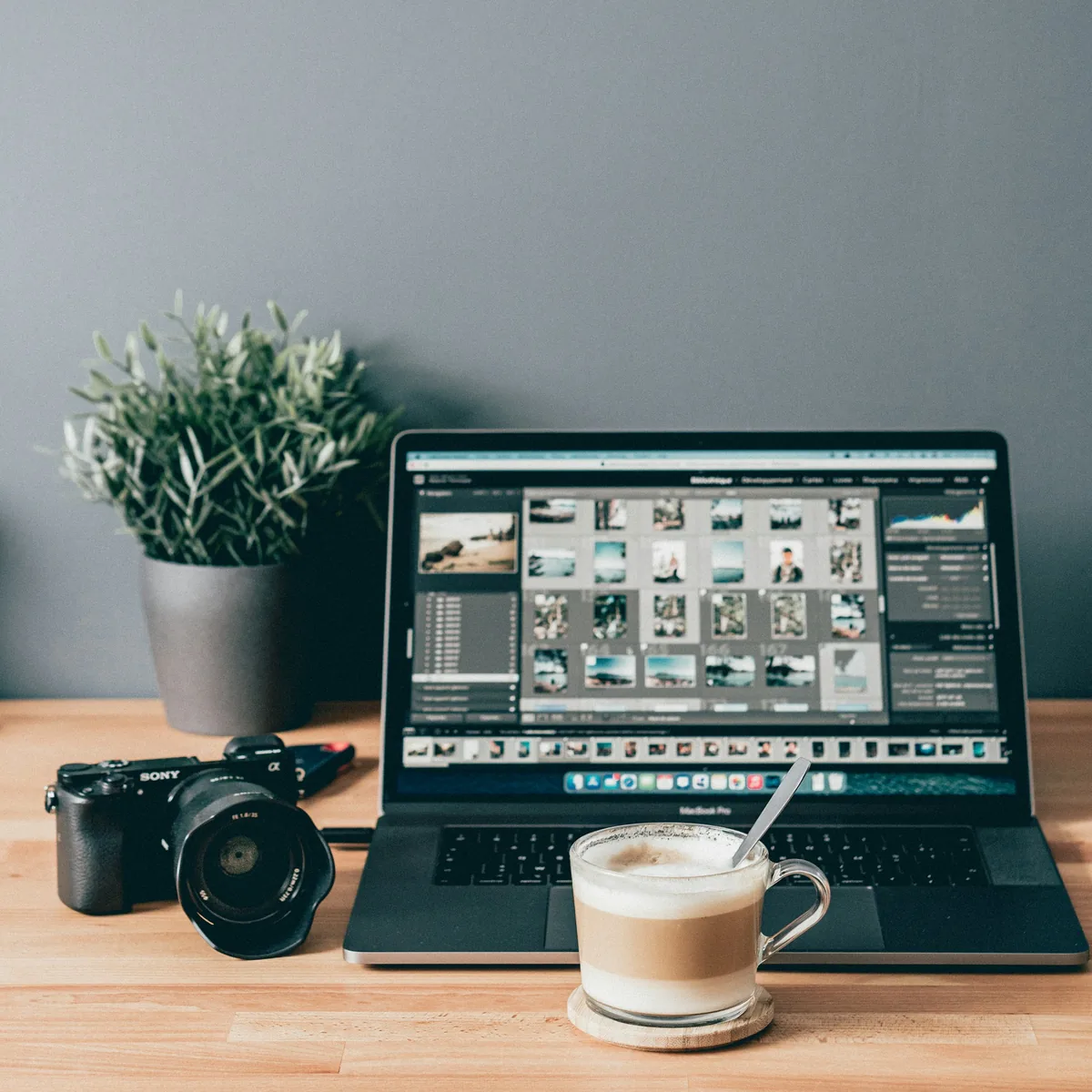
White point, tone response and luminance describe the intended display state. Calibrite’s photographic guidance gives D65 and gamma 2.2 as a starting combination; its manual workflow example uses roughly 100 cd/m², while its Display 123 Photo preset uses 120 cd/m². That difference is a useful reminder that a starting target is not a universal law. Follow the requirements of the workflow and software you are using, particularly when matching prints under controlled lighting. Save the selected values with the profile. A brightness slider percentage is not a luminance measurement, and copying someone else’s slider setting does not reproduce their screen.
Measure, then save the correct display profile
Position the sensor as its instructions specify, with proper contact against the screen and no stray light entering the measuring area. Select the correct display technology or instrument correction when required by the software. During measurement, keep pop-up windows and the monitor’s own settings menu away from the patch area. Calibration adjusts the display toward the target; profiling characterizes its resulting behavior for color-managed applications. EIZO distinguishes hardware calibration, which adjusts the monitor internally, from software calibration using the computer’s output corrections. Follow the supported route for your equipment rather than assuming that every monitor accepts internal calibration. Save a descriptive profile name containing the display, target and date.
Validate without grading your own test by eye
After applying the profile to the intended display, run the software’s verification or validation function if available. EIZO’s ColorNavigator documentation describes measuring patches and comparing displayed values with the profile’s expected values. Keep that report as the baseline for later checks. Then inspect familiar photographs and smooth gradients in a color-managed application, looking for an unexpected cast, clipping or abrupt tonal steps. A pleasing picture is a useful sanity check, not a substitute for the measurements. With two monitors, verify each separately; a profile for one panel is not automatically suitable for the other, even if they share a model name.
Troubleshoot the mismatch before correcting the image
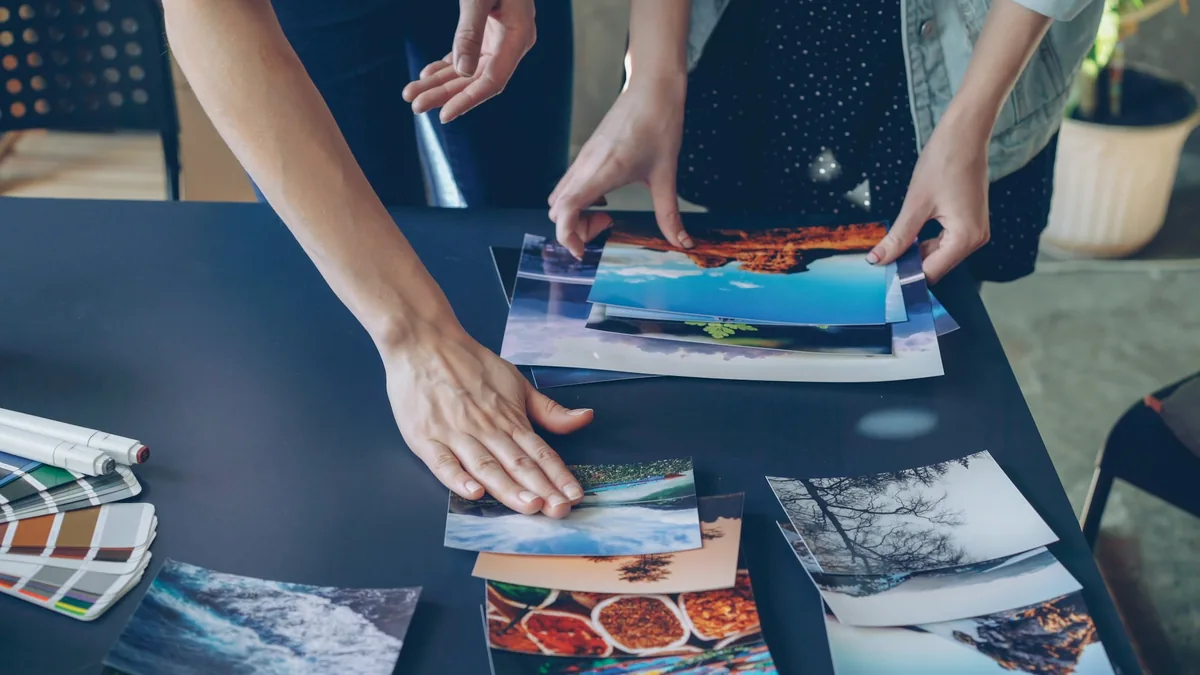
If a print looks too dark, first check the display target and the light used to view the print. If only one application looks different, investigate its color-management behavior and the file’s embedded profile. If the whole display changes after a system update, confirm which profile and display mode are active. Recheck after a deliberate brightness change, a significant workflow change or the interval recommended by your calibration system. Keep the previous report so a new measurement can be compared with something concrete. For the next stage—document profiles, soft proofing and delivery—continue with our photo color-management guide.