Ask where the photograph will be used
An export is a delivery copy, not a universal final version of a photograph. A small web placement, a full-screen presentation and a physical print can need different dimensions, color handling and sharpening. Obtain the recipient’s requirements before choosing a preset. Ask for the intended crop, pixel dimensions or print size, accepted file format and any maximum file size. When those details are unknown, clarify them rather than assuming that the largest possible file is always the most useful or that one social-media preset suits every destination.
Separate pixels from the print-resolution label
A file that measures 3000 by 2000 pixels contains the same number of image samples whether its print-resolution metadata says 72 or 300 pixels per inch, provided it has not been resampled. At 300 pixels per inch those dimensions correspond to 10 by approximately 6.67 inches. At 150 pixels per inch the nominal dimensions double. Changing the label alone does not invent additional subject detail. The appropriate print resolution depends on the output process, viewing distance and printer’s requirements; 300 is an example, not a universal quality threshold.

Choose the crop before calculating the output
Aspect ratio describes shape, while pixel dimensions describe the raster size. A 3:2 photograph does not fill a 4:5 space without cropping, leaving borders or distorting the image. Decide which treatment is acceptable before export. Check important details near the edges and allow for any trim or framing specified by the recipient. Avoid stretching the image simply to make two requested numbers fit. If the crop removes too much of the subject, explain the constraint and provide an alternative composition rather than hiding the compromise.
Resize a copy, not your only master
Keep the original capture and a suitable editable master or editing instructions. Make a separate delivery copy at the required size. Downsampling reduces dimensions; upsampling adds pixels but does not automatically restore detail that was never captured. Inspect any enlarged result at the intended use size and be particularly careful with faces, fine lettering and repeated textures. Record which file is the full-resolution source and which is the export so a small web copy is not accidentally used as the basis for a future large print.
Treat the export dialog as a checklist
Adobe’s Lightroom Classic export documentation separates File Settings, Image Sizing, Output Sharpening and Metadata. Those controls solve different problems. Confirm the chosen format and dimensions, then use the output medium to guide the sharpening choice rather than simply increasing sharpening until the preview looks crisp. Follow the destination’s color-space requirements and include the appropriate profile when the workflow calls for it. A print lab’s instructions take precedence over a generic internet recipe. Avoid changing several uncertain settings at once when troubleshooting an unexpected result.
Check compression with the actual subject
A JPEG quality number is not a guaranteed file size or a directly comparable scale across every application. Fine foliage, noise and smooth gradients can react differently to compression. Export a small comparison when size is constrained and inspect the subject’s important detail, edges and tonal transitions. Keep the least aggressive reduction that meets the real delivery need. Repeatedly opening and saving the same compressed delivery file is a poor substitute for making a new export from the master when another version is required.
Review metadata and file identity
Use a clear filename or folder convention that distinguishes destinations, versions and crops. Retain useful authorship and caption information where appropriate, but review location and other sensitive metadata before public sharing. Do not strip everything by habit if an editor needs credits and accurate descriptions. Equally, do not assume that an application has removed private metadata merely because the image looks clean. Inspect a representative exported file with a metadata-aware tool and confirm what the recipient will actually receive.
Open the copy before sending it
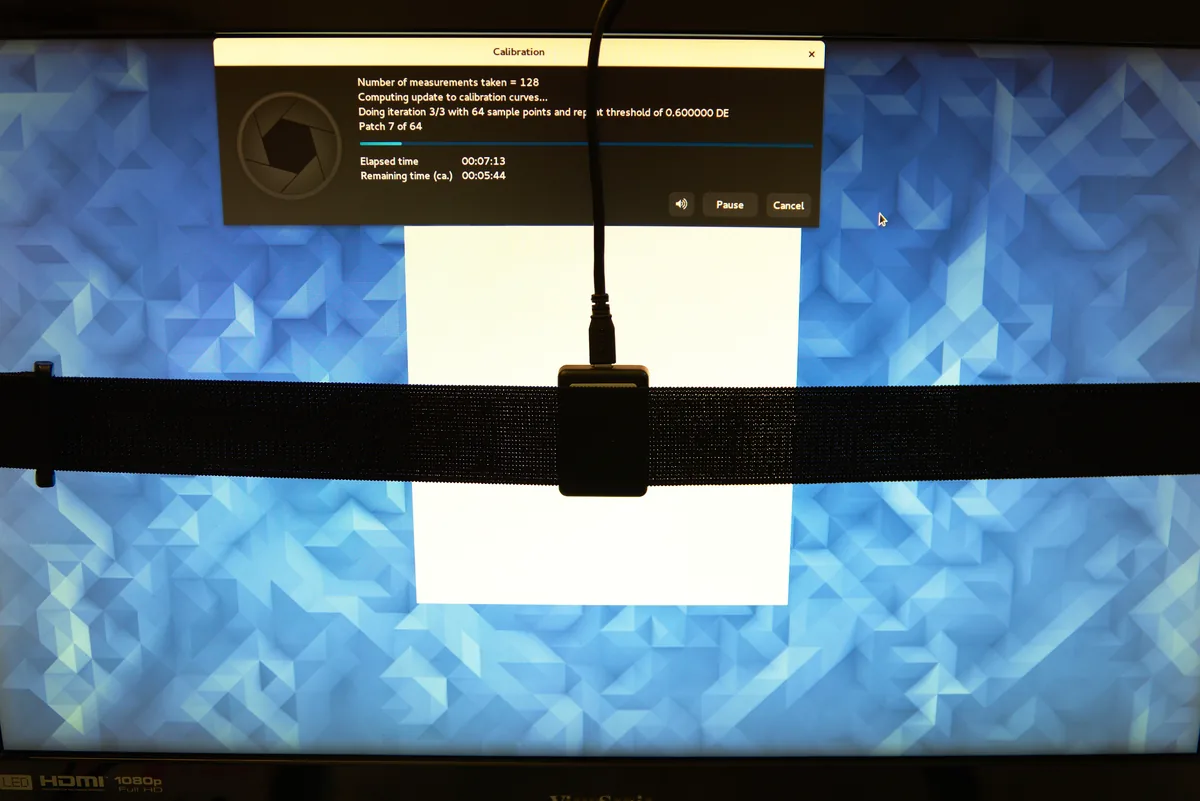
After export, verify dimensions, orientation, crop, color appearance and visible artifacts in the resulting file. For important prints, use a proof made through the intended process before committing to a large run. The photo-library, calibration and print-handling photographs here illustrate stages of the workflow, not a controlled color comparison or a current software interface tutorial. Keep a short delivery note with the agreed specifications. A repeatable check is more valuable than a preset whose settings nobody remembers.